
Task
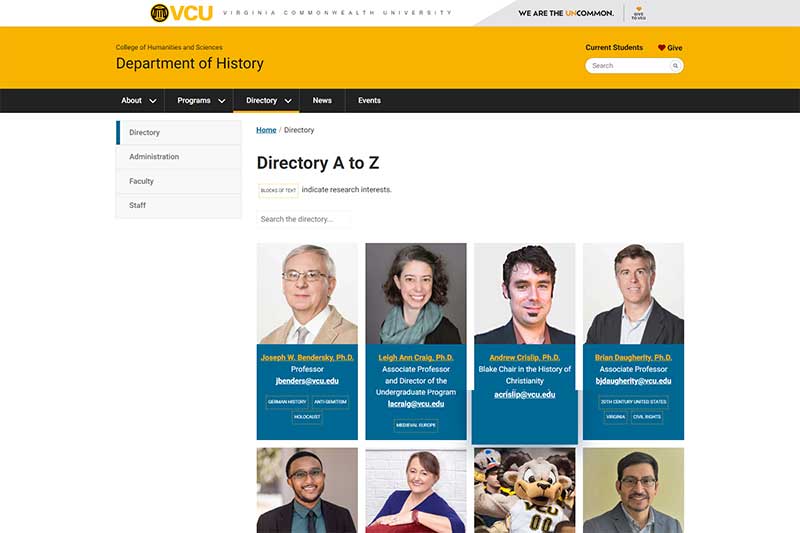
As part of the multisite redesign, design a new staff directory plugin with search functionality and that is easier to use for content managers. A specific request was made that site visitors be able to see on the main directory page what the research interests of the faculty are.
My Role
I designed, developed and provided documentation/training on the new staff directory plugin at my own initiative.
Before / After
Full Text Before
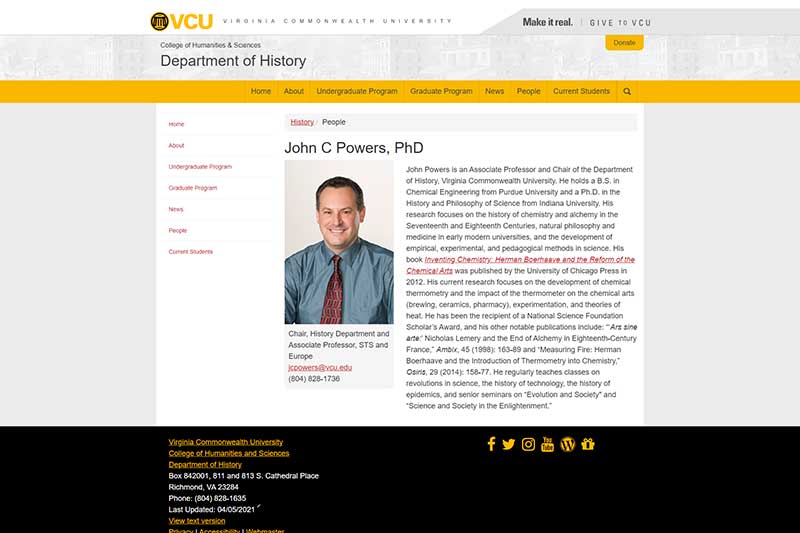
Full Text After
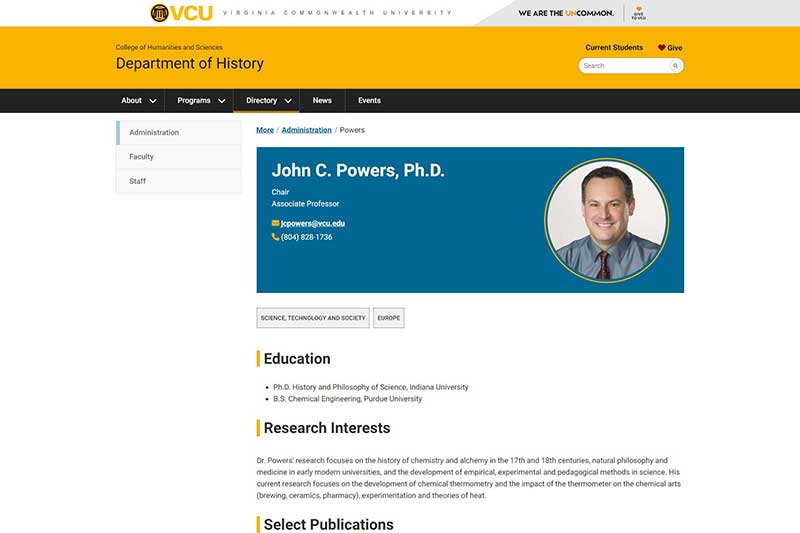
Full Directory Before

Full Directory After
Featured Skills
- HTML, CSS, Javascript
- TerminalFour CMS (programmable layouts, specifically)
- Device agnostic design
- Compass web framework
- UX
Functionality
User input into the search box on the main directory page will search on any field in the plugin: name, title, email address or research interests. A user may click on any card to see the full-text version of a staff member.
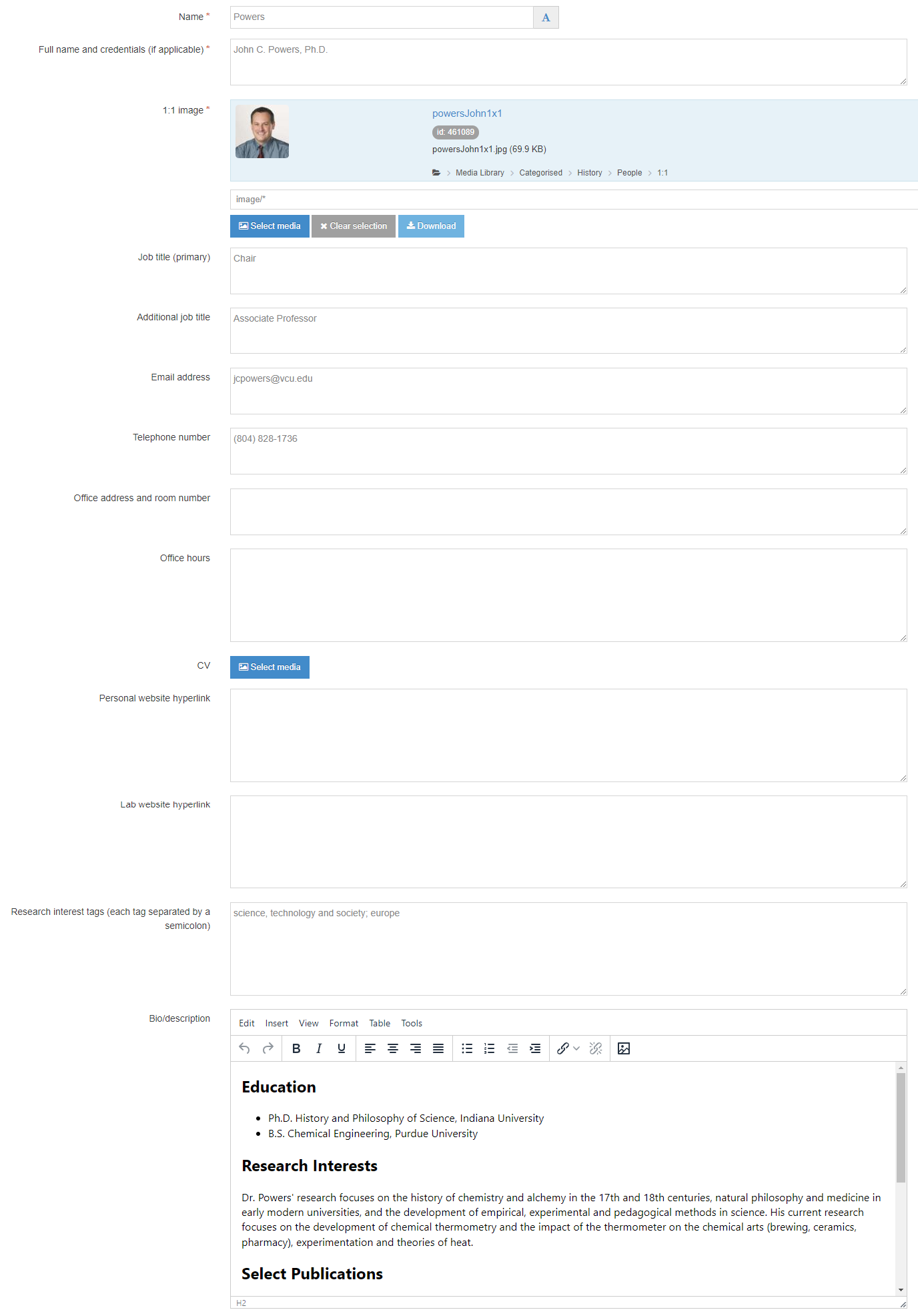
Input Fields
Fields are named in such a way so as to promote standards (e.g., instead of naming a field ‘Image’ as would be customary, I named it ‘1:1 image’ to remind content managers of the ratio to use for the image). Other tips for content managers are offered upon hovering over the field name or input box as well as in the plugin’s documentation. For instance, if you hover your cursor over the telephone number field, a tip pops up that says ‘Format: (804) 555-1212,’ again, to promote consistency and standards.
Challenges
Because this is a plugin that will ultimately be used across 37 websites—some of which will want the ability to display research interests of the faculty and some of which will not—I chose an input field for this particular information (‘research interests tag’). A list would have allowed for less opportunity for data entry mistakes for content managers and would be slightly easier to use, but using a list would have meant separate lists and thus separate plugins to design for up to 37 websites. Such a large portfolio of plugins for a staff directory is untenable for our low resource team.
In the old plugin, content managers had to input most of the information into the WYSIWYG, which created wild variations in display consistency within any given site. With the new version, I made multiple auto-output fields to eliminate that problem. If I could have achieved consensus on taxonomies for the subheadings in the new plugin (e.g., Education, Research Interests, Courses, etc.), I would have made auto-outputs for those fields, too, instead of using the WYSIWYG. As one can imagine, however, it is an impossible task given he wide range of fields covered in the humanities and sciences. Since I could not automate this information, I added in other supports to help content managers create effective displays. For example, in addition to adding a tip to the hover pop-up for the input to use <h2> for the subheadings, I created a staff directory exemplar linked from each manager’s website guide to demonstrate how to set up a standardized display. Furthermore, I created a Google Form for each web manager that they could use to intake the information from new faculty/staff members in such a way as to promote consistency (i.e., the fields in the intake form match those of the plugin’s).
User Documentation
In addition to keeping coding/revision documentation on the plugins I develop on Bitbucket, I create a user guide for each that is geared toward content managers on a shared wiki. View an exported version of that particular page by selecting ‘Download’ below.
 Jen Elswick